01 / USER MANUAL
Quick Start
- Insert. Add the current DEMONGAIN development plugin (ROXGAIN in the host browser) to your track. Keep GAIN ON and KILLSWITCH bypass off. Fresh READY can be dark before audio arrives.
- Target. Choose a sample-peak target. Factory default: −6.00 dBFS. Use a target that suits your signal chain.
- Learn. Play the loudest relevant section. Check LEARNING; press LEARN / RELEARN if needed.
- Lock. Press LOCK, or stop playback where transport capture is supported. Correction stays fixed. Change the target later without relearning a still-valid reference.
DEMONGAIN only knows the audio it has heard. KILLSWITCH bypasses processing; it does not mute.
Full walkthrough and example targets
Your First Calibration in 60 Seconds
STEP 1 — INSERT
Add the DEMONGAIN 0.4.0 development build to an audio or instrument track inside a compatible VST3 host. The host browser and bundle retain the ROXGAIN name for compatibility; the editor now uses the approved DEMONGAIN hardware artwork.
STEP 2 — SET TARGET
Choose your desired sample-peak level.
Examples:
−14.00 dBFS
A possible working target for individual source material.
−6.00 dBFS
A possible later-stage target where appropriate headroom remains.
These are examples, not mandatory industry standards.
STEP 3 — PLAY
Play the loudest section of your audio or let the entire track run.
Check that LEARNING appears. If it does not, press LEARN / RELEARN and play again. Automatic start depends on host transport information.
DEMONGAIN measures the signal after any enabled DC Filter, Bass Mono and Width processing, before gain correction. The raw input meter is separate from this calibration reference.
STEP 4 — LOCK
Stop playback, where automatic transport capture is supported, or press LOCK.
DEMONGAIN stores the measured reference and calculates the required gain correction.
STEP 5 — CREATE
Continue producing.
Your correction remains fixed.
You may change the target level afterwards without relearning, provided the stored reference remains valid.
Important: DEMONGAIN cannot predict audio peaks it has not yet heard.
For accurate calibration, play the loudest relevant section before locking.
02 / USER MANUAL
How Gain Staging Works
DEMONGAIN calculates a fixed gain adjustment from the selected target and measured sample peak.
Example
Measured post-utility reference peak: −10.00 dBFS
Selected target: −14.00 dBFS
Automatic correction: −4.00 dB
DEMONGAIN applies that correction without continually following every change in volume.
Does DEMONGAIN compress audio?
No.
Locked calibration does not perform dynamic compression, limiting or automatic volume riding.
It applies a fixed gain correction.
Can I adjust the target afterwards?
Yes.
Changing the target recalculates the correction using the existing learned reference.
Relearning is only necessary when the reference no longer accurately represents the audio being processed.
Does DEMONGAIN prevent clipping?
No.
It uses sample-peak measurement, not true-peak limiting.
A later, louder passage or downstream processing can exceed the selected target.
Always check final output levels.
03 / USER MANUAL
Gain On / Off
| Control | What it does |
|---|---|
| LEARN / RELEARN | Start a fresh measurement pass. Play the loudest relevant audio. |
| LOCK | Capture a valid measured reference and calculate fixed gain. |
| TARGET | Choose the sample-peak target, not a LUFS or true-peak target. |
| GAIN — ON / OFF | Enable gain calibration and trim, or use the utilities alone. |
| WIDTH | Open the nine starting positions and the 1% fine-tune slider. |
| BASS MONO | Narrow low-frequency Side information; adjust its crossover. |
| DC FILTER | Toggle the optional 2 Hz DC-blocking stage. |
| ADVANCED | Open the five gain and learning settings. |
| KILLSWITCH | Bypass the full chain. It does not mute. |
| CLEAR WARNINGS | Clear peak/input diagnostics. It does not repair a stale calibration. |
| SAVE DEFAULT | Save starting settings for new instances, never this track’s calibration. |
| i | Open Settings / About. Manual / Support remains inactive in the development plugin. |
Current hardware interface — 0.4.0
The approved metal coffin chassis, stacked DEMON GAIN wordmark and physical-style controls now run in the native plugin editor. Images in this manual are genuine compiled JUCE editor captures, not concept illustrations or screenshots from inside Ableton.
- Turn Target, Width, Gain trim or Bass Mono to adjust. Shift-drag gives finer control.
- Press Target for choices, Width for its drawer, Gain to switch gain correction, or Bass Mono to switch the bass utility.
- Double-click numeric values to type. Double-click Width to reset to 100%.
- Magenta indicates processing, amber flags a utility-changed reference requiring relearn, and red indicates full-chain bypass. Fresh READY can remain dark without bypassing audio.
- KILLSWITCH bypasses processing; it does not mute.
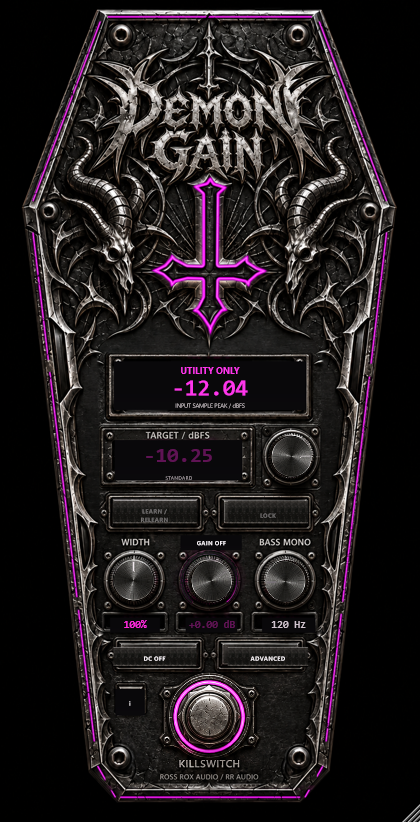
Calibration or Utility Only
DEMONGAIN has two gain-stage operating modes.
GAIN ON
The automatic gain-calibration engine operates normally.
Learn, Lock, Target, automatic correction and manual trim are available.
GAIN OFF — UTILITY ONLY
Disables automatic gain correction and manual gain trim.
The following processors remain active:
- Stereo Width.
- Bass Mono.
- DC Filter.
Your previous calibration and settings are retained.
Switch GAIN back ON to restore the gain-stage settings.
Why use Utility Only?
Sometimes you only want to alter stereo width, centre low frequencies or remove DC offset.
You do not need to calibrate the audio to use those functions.
Utility processing can still change signal peaks. Unity correction does not necessarily mean unchanged output level.
04 / USER MANUAL
Stereo Width
Shape Your Soundstage
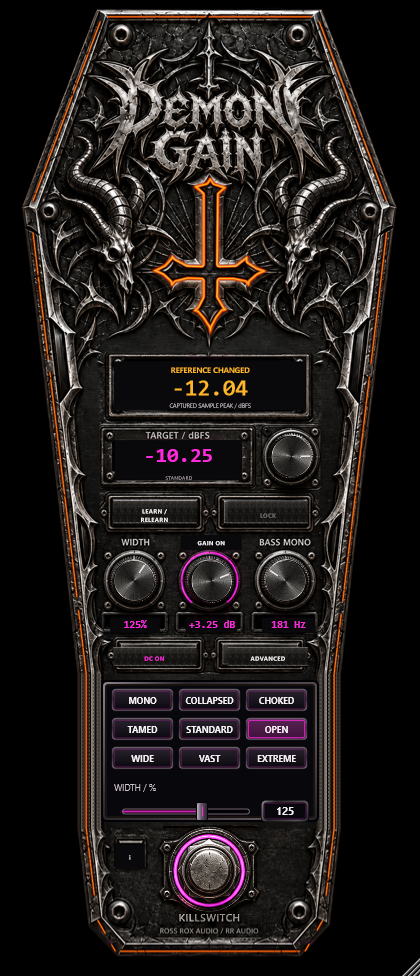
DEMONGAIN provides a continuous stereo-width control with nine selectable starting positions.
| Width | Name |
|---|---|
| 0% | MONO |
| 25% | COLLAPSED |
| 50% | CHOKED |
| 75% | TAMED |
| 100% | STANDARD |
| 125% | OPEN |
| 150% | WIDE |
| 175% | VAST |
| 200% | EXTREME |
Select a stage to immediately audition the corresponding Width setting.
Use FINE TUNE to adjust between stages in 1% increments.
Double-click reset returns to 100%.
What does it do?
DEMONGAIN uses Mid/Side processing to control the Side component of a stereo signal.
At 100%, the Width stage leaves the original stereo signal unchanged.
Below 100%, the stereo image becomes narrower.
Above 100%, Side information is increased.
At 0%, the output is mono.
Suggested uses
- Atmospheric pads.
- Cinematic textures.
- Stereo synthesisers.
- Background layers.
- Reverberant elements.
- Focused foreground sounds.
Important
Extreme width can increase stereo sample peaks and affect mono compatibility.
Use your ears, check mono playback and recalibrate when required.
05 / USER MANUAL
Bass Mono
Focus the Low End.
Bass Mono reduces low-frequency stereo Side information while preserving the central Mid signal.
Controls
Bass Mono: ON/OFF
Crossover: 50–500 Hz
Default crossover: 120 Hz
Initial state: OFF
How does it work?
DEMONGAIN uses a two-pole Butterworth-style high-pass applied to the Side component.
The transition is gradual, approximately 12 dB per octave.
The Mid signal remains untouched by the Bass Mono processing stage.
What does that mean musically?
Bass Mono progressively narrows low-frequency stereo content.
This can produce a more focused low-frequency image while retaining more stereo information at higher frequencies.
When should I use it?
Consider Bass Mono on:
- Stereo bass patches.
- Layered 808 sounds.
- Cinematic pulses.
- Industrial drums.
- Wide synthetic low-frequency textures.
Does it boost bass?
No.
Bass Mono changes stereo distribution; it is not an equaliser or bass enhancer.
On sources containing out-of-phase low-frequency energy, narrowing can change perceived bass weight.
Recommended starting point
Try 120 Hz, compare ON/OFF at similar listening loudness and adjust according to the material.
Bass Mono is optional. It should be used because it benefits a sound, not because every source requires it.
06 / USER MANUAL
DC Filter
Remove Unwanted DC Offset
DC offset occurs when a waveform is displaced away from its zero centre.
Significant offset can reduce available headroom and affect some audio processing.
DEMONGAIN includes an optional DC-blocking filter with a nominal 2 Hz cutoff.
Operation
DC FILTER ON enables DC removal.
DC FILTER OFF bypasses that stage.
The filter defaults to OFF, although users may save ON as their preferred default.
The very low cutoff is intended to preserve audible bass as much as practical.
Extremely low-frequency material can still be affected by filtering.
07 / USER MANUAL
Killswitch
One Stomp. Everything Bypassed.
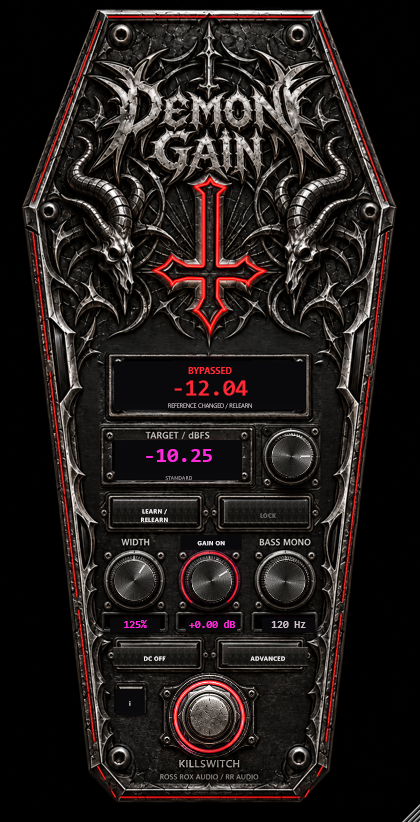
KILLSWITCH bypasses DEMONGAIN's complete processing chain.
It is independent of GAIN ON/OFF.
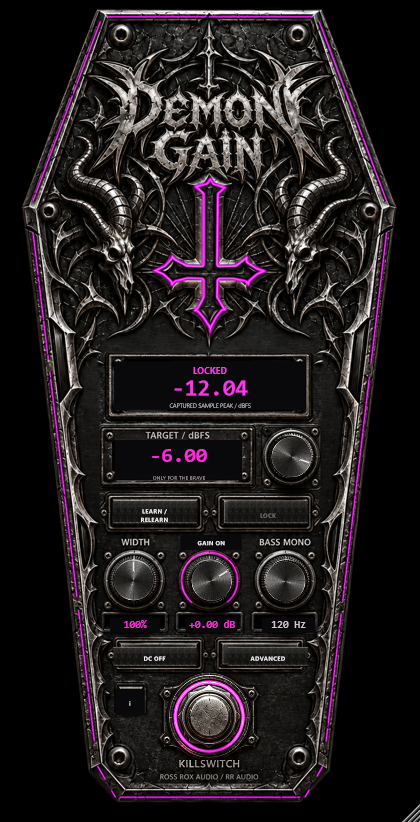
Magenta — Processing Engaged
The plugin operates according to its selected gain and utility settings.
Red — Bypassed
The original input passes through, without DEMONGAIN processing.
Your calibration and settings remain stored.
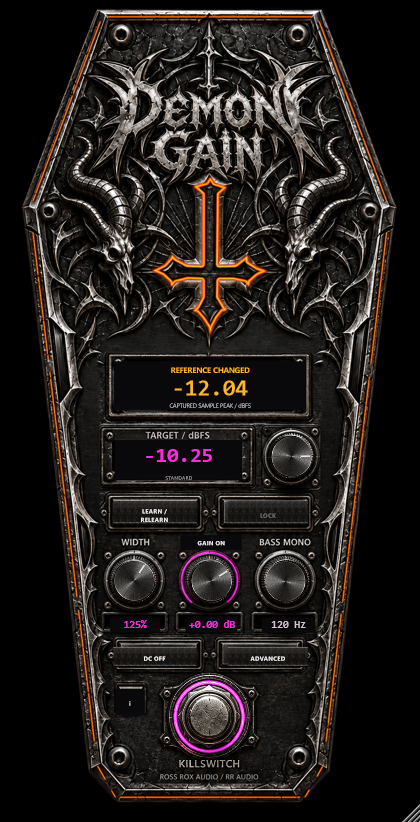
Amber — Reference needs relearning
A utility setting changed after the current reference was captured. The cross/frame turn amber until a successful RELEARN / LOCK resolves the reference. This warning can also appear in Utility Only mode. CLEAR WARNINGS cannot clear it.
The KILLSWITCH ring retains its engaged/bypassed colours. Full-chain bypass takes red priority over amber, while the reference warning remains available in the status detail. A separate higher-input-peak diagnostic does not itself trigger amber.
Important
KILLSWITCH is not a mute button.
If DEMONGAIN was reducing gain significantly, bypassing it may produce a sudden increase in loudness.
Be cautious when monitoring at high volume.
08 / USER MANUAL
Calibration Status
READY
DEMONGAIN is ready for a new learning pass.
LEARNING
Incoming audio is being measured.
LOCKED
A valid reference has been captured and the gain correction is stored.
REFERENCE CHANGED
A utility setting has changed since calibration.
The previous correction remains active, but the measured reference may no longer describe the processed signal accurately.
Use RELEARN when appropriate.
UTILITY ONLY
Gain correction is disabled; utility processing remains available.
BYPASSED
KILLSWITCH has bypassed the complete signal-processing chain.
Insufficient Audio
DEMONGAIN may reject calibration when there has not been enough meaningful audio above the configured activity threshold.
Play a longer or louder passage and try again.
09 / USER MANUAL
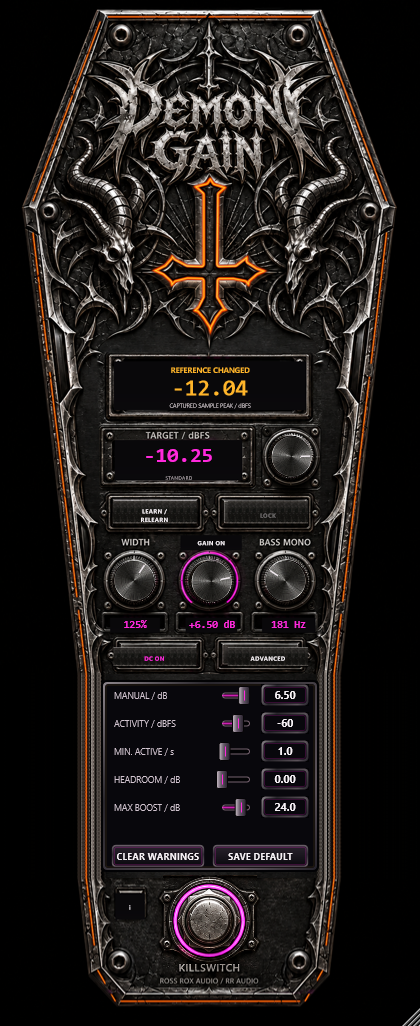
Advanced Settings
Precision Without Clutter
Most users can leave Advanced settings at their defaults.
Manual Gain
Provides additional manual gain adjustment when GAIN is ON.
Default: 0.00 dB.
Activity Threshold
Determines which signal levels qualify as meaningful audio during learning.
Default: −60 dBFS.
Minimum Active Duration
Defines how much qualifying audio is required before a valid calibration can be captured.
Default: 1.0 second.
Additional Headroom
Adds a safety margin below the selected target.
Default: 0.00 dB.
Example: −14 dBFS target with 3 dB additional headroom produces a nominal −17 dBFS calibration objective.
Maximum Automatic Boost
Limits how much automatic amplification DEMONGAIN can apply.
Default: +24 dB.
This helps prevent extreme gain boosts on quiet signals.
If the limit prevents the target from being reached, the output may remain below the selected level.
10 / USER MANUAL
Settings / About
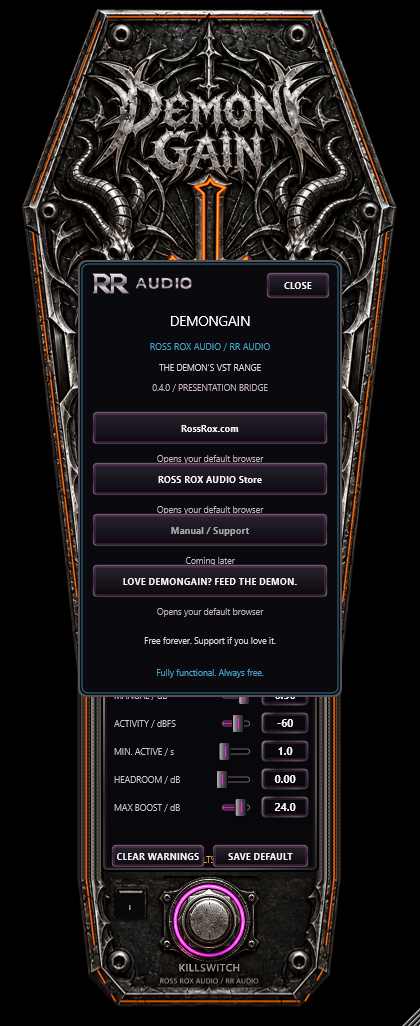
DEMONGAIN includes a built-in Settings/About panel, accessible through the information control in the plugin editor.
The DEMONGAIN 0.4.0 Settings / About panel provides:
- RossRox.com.
- Ross Rox Audio Store.
- Manual / Support — currently inactive in the development plugin. Read this website manual directly; enabling the in-plugin link is a separate software update.
- Voluntary creator support.
Enabled links open in the default web browser when selected.
No donation is required to operate the plugin.
Saving defaults
SAVE DEFAULT stores preferred starting settings for new instances, including GAIN ON/OFF. It never saves a track’s learned calibration as a default.
Individual tracks retain their own calibration and project state.
Changing saved defaults does not automatically recalibrate existing tracks.
11 / USER MANUAL
Windows Installation
Supported format
DEMONGAIN currently targets Windows x64 VST3.
Ableton Live 12 is the primary development/testing host.
Further host compatibility must be verified before public release claims are made.
Installation steps
- Close your DAW.
- Extract the development package supplied to you. Public downloads are not open yet.
- For the current development package, locate the complete
ROXGAIN.vst3bundle. The host-facing ROXGAIN identity is deliberately retained for compatibility; do not rename the bundle or its internal files yourself. - Copy it into:
C:\Program Files\Common Files\VST3\
- Reopen your DAW.
- Enable/rescan the appropriate VST3 location.
- Find ROXGAIN in your plugin browser for the current development build. DEMONGAIN 0.4.0 is shown inside the editor; the host-facing name is retained for compatibility.
Copy the entire bundle, not just its internal DLL.
Updating DEMONGAIN
Close the DAW and back up the installed bundle before replacing it.
Copy the complete new ROXGAIN.vst3 bundle into the same location while testing the current development package. Follow the official package name after the rename is released.
Restart your DAW and verify the version number.
Keep a backup of important projects before development-version upgrades.
DEMONGAIN 0.4.0 retains schema 3, the existing parameter identities and the ROXGAIN host identity. Earlier development versions used different saved-state schemas. Automated recall checks pass; actual Ableton project recall and freeze/export acceptance remain pending.
Follow release-specific upgrade and rollback instructions when available.
12 / USER MANUAL
Troubleshooting
My target isn't being reached
Check that GAIN is ON and KILLSWITCH is not active.
Play the loudest relevant section and capture a fresh reference.
Check headroom, manual trim, maximum boost and downstream processing.
Why is the output louder when bypassed?
KILLSWITCH removes DEMONGAIN's gain correction.
If the plugin was reducing gain, bypassing restores the louder original signal.
Why does REFERENCE CHANGED appear?
A utility setting has changed after the previous reference was captured.
The gain correction is retained, but the old reference may no longer represent the processed audio.
Use RELEARN if accurate peak calibration is required.
Why is my bass different with Bass Mono enabled?
Bass Mono removes some low-frequency stereo information.
On phase-heavy stereo sources this can change perceived bass weight.
Compare processed and unprocessed sound at matched listening loudness.
Why can't I use LEARN?
Check whether GAIN is OFF, the plugin is bypassed or the required learning conditions have not been met.
DEMONGAIN isn't appearing in Ableton
Confirm the complete bundle is installed in an enabled VST3 folder.
Restart Live and rescan your VST3 plugins.
I hear clicks or glitches
Check the DAW buffer size and whether the issue occurs when changing parameters or bypassing.
Record the exact plugin version, DAW version and reproduction steps when reporting a fault.
My interface is too large
Use the supported proportional plugin resizing controls.
The editor supports view scaling from 65% to 150%, although actual host/DPI behaviour must be validated for the final release.
13 / USER MANUAL
Frequently Asked Questions
Is DEMONGAIN free?
DEMONGAIN is intended to be released free forever. Optional support contributions will be available.
Is DEMONGAIN a compressor?
No. Locked calibration uses fixed gain rather than dynamic compression.
Does DEMONGAIN measure LUFS?
No. Its current calibration system measures sample peaks.
Does DEMONGAIN measure true peak?
No. Sample peaks are not equivalent to true peaks.
Can I use DEMONGAIN only for stereo width?
Yes. Switch GAIN OFF to enter Utility Only mode.
Does Bass Mono make bass louder?
Not inherently. It changes low-frequency stereo content, not bass EQ gain.
Does KILLSWITCH mute audio?
No. It bypasses processing.
Can I use multiple DEMONGAIN instances?
The plugin supports independent instances, although performance depends on your computer and session.
Can I save calibration with my project?
Yes. DEMONGAIN supports per-instance state recall.
Can I use it for commercial music?
Final permitted usage will be defined by the approved end-user licence. Publish confirmed licensing terms before public distribution.
14 / USER MANUAL
Technical Specifications
| Property | Current development implementation |
|---|---|
| Working build | DEMONGAIN 0.4.0 hardware development candidate |
| Host / bundle name | ROXGAIN / ROXGAIN.vst3, retained for compatibility |
| Format | Windows x64 VST3 |
| Framework | JUCE / C++17 |
| Calibration | Fixed sample-peak gain |
| Default target | −6.00 dBFS |
| Activity threshold | −60 dBFS |
| Minimum active duration | 1 second |
| Maximum auto boost | +24 dB |
| Width | 0–200% |
| Width stages | Nine |
| Bass Mono | 50–500 Hz |
| Default Bass Mono | 120 Hz, OFF |
| Bass Mono design | Two-pole Side high-pass |
| DC Filter | Nominal 2 Hz, optional |
| Gain-only bypass | GAIN OFF |
| Full-chain bypass | KILLSWITCH |
| Saved state | Schema 3 in current development build |
Host compatibility, CPU use and transparency depend on the host, system and source material; universal compatibility and zero CPU use are not claimed.
Current automated test results and offline benchmarks are internal development evidence, not substitutes for public release qualification.
15 / USER MANUAL
Support
Need Help Taming Your Levels?
If DEMONGAIN behaves unexpectedly, please provide:
- DEMONGAIN version.
- Operating system.
- DAW and version.
- Audio sample rate and buffer size.
- Relevant settings.
- Steps to reproduce the problem.
- Screenshots or audio examples, if appropriate.
Prepare a bug report below, then open your email app to send it to the existing Ross Rox contact address, admin@rossrox.com. Nothing is submitted automatically. Attach screenshots or short audio examples yourself if useful, avoiding private project material.
16 / USER MANUAL
Support Ross Rox Audio
LOVE DEMONGAIN?
FEED THE DEMON.
DEMONGAIN is planned as a free release. The current 0.4.0 hardware development candidate is not a public product release. Final Ableton/Windows DPI acceptance and licensing/redistribution review remain open.
If it saves you time, improves your workflow or makes your production sessions easier, you can optionally support future Ross Rox Audio development.
Suggested contributions
£0 — Free forever.
£2 — Feed the Demon.
£4.99 — Keep the Coffin Glowing.
£9.99 — Fuel the Next Creation.
The planned free release has no contribution-based feature tiers. A contribution today is voluntary creator support; it does not provide a download, early access or a licence.
No obligation. No feature restrictions. No payment required.
FREE FOREVER. SUPPORT IF YOU LOVE IT.
Choose your amount on the existing PayPal creator-support page. These amounts are suggestions; no payment is required. No Shopify pay-what-you-want checkout or download fulfilment is offered here.
Optional creator support via PayPal ↗ (opens in a new tab)Choose the amount on PayPal. This is creator support, not a charitable donation or a product purchase.